How to use a digital planner
UpdatedA digital planner is a PDF you write in on a tablet. You download it once, open it in a note-taking app like GoodNotes, and tap its tabs to jump between pages instead of scrolling. If you've never used one, this guide covers everything from the download to your first week.
What a digital planner actually is
Most digital planners are a single, large PDF with hyperlinks built in. The tabs along the edge (months, weeks, sections) are links: tap one and you jump straight to that page. You write on the pages with a stylus, type with your app's text tool, or add digital stickers.
Because it's a file, not an app, there's no subscription and no account. Your planner lives in your note-taking app, next to your other notebooks.
What you need
- A tablet. An iPad, an Android tablet (Samsung Galaxy Tab and others) or a Windows tablet.
- A note-taking app that supports PDF links and handwriting. On iPad: GoodNotes, Notability, Noteshelf. On Android: Samsung Notes, Xodo, Noteshelf, Penly, Flexcil. On Windows: Xodo, Drawboard PDF, Noteshelf, Adobe Acrobat.
- A stylus (optional). An Apple Pencil, S Pen or similar makes handwriting easier. Without one, you can type and place stickers with your finger.
Step by step: setting it up
1. Download the planner on your tablet
Open your download link in your tablet's web browser and save the PDF. Downloading on the tablet itself is easiest; if you downloaded on a computer, send the file to your tablet through iCloud Drive, Google Drive, email or a USB cable.
2. Import it into your note-taking app
In GoodNotes, tap the + button and choose Import, then pick the PDF. In other apps, look for Import or Open, or use your browser's Share button and choose your app. The planner opens as a new notebook.
3. Open the start page
Most planners begin with a cover and a "start here" or index page. Read it once: it shows where each section is and how the tabs work.
4. Tap a tab to test the links
Switch away from the pen tool first (choose the hand, read or select tool), then tap a tab. If it jumps to the right page, the links work. If tapping draws a line instead, you're still holding the pen.
This is the one habit that trips up every beginner: tap links with the pen tool off, write with it on. Some apps let you set a finger-tap or a pencil double-tap to switch tools quickly.
5. Write on your first page
Pick the pen, choose a color, and write today's plan. Use the eraser or lasso tool to fix mistakes. Pages save automatically.
6. Add stickers (optional)
Digital stickers usually come as PNG images or as a sticker book PDF. Add PNGs with your app's image tool. In GoodNotes, you can open a sticker book, lasso a sticker and tap "Add to Stickers" to save it for reuse.
Getting the most out of it
Duplicate pages you use often. Most apps let you copy a page within a notebook. Handy for templates like a weekly reset, a meal plan or a habit tracker.
Keep the file small. Very large planners can slow some apps down. Planners that come split into separate files (a main planner plus separate template files) stay faster.
Back it up. Turn on your app's cloud sync or backup. Your planner is a file, and files can be lost with a device.
Use it on every device. If your app syncs, the same planner opens on your tablet and phone. Check your planner's license: most allow all of your own devices.
Printing works, links don't. You can print pages for your own use, but on paper the tabs are just pictures.
Common problems and fixes
| Problem | Fix |
|---|---|
| Tapping a tab draws a line | Switch off the pen tool, then tap |
| Links don't work at all | Your app may not support PDF links; try GoodNotes, Notability, Samsung Notes or Xodo |
| The file won't import | Check it fully downloaded; re-download on Wi-Fi |
| The app is slow | Use a smaller file or split the year into separate notebooks |
| Can't find the download link | Check your email, including spam, for the purchase email |
Choosing a digital planner
Look for one that matches how you actually plan. If you've quit planners before, a simpler daily page usually beats a packed one; see why planners don't work for ADHD.
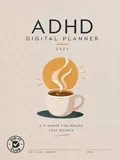
The Did-It Club ADHD digital planner is a hyperlinked PDF with 520+ pages and tabs for Home, Year, Now, Dump, Wins and all 12 months. Each planner file is under 5 MB, so it imports into the free version of GoodNotes. It comes in 2027 and undated versions, Sunday or Monday start, with 9 colorways, 20 bonus templates and 200 stickers, all in one download. Setup guides by device: iPad, GoodNotes, Android and Windows.